Article: Frequently Asked Questions about DB Marktplatz
These FAQs are a condensed list of the most important questions we have received from our suppliers who are already connected and have needed technical support for DB Marktplatz (SAP Ariba Guided Buying). They are intended as a quick reference tool so that we can address your concerns efficiently and so that we can help make support as smooth as possible.
1. How do I sign up to receive/stop receiving e-mail notifications for new requests for quote?
If you would like to add employees to the mailing list for new requests for quote, please contact our support team by submitting a support request using the support form.
Select "Angebotsanfrage" (request for quote) as the category. In the support request, provide the name and e-mail address of the new employee you would like to receive notifications. This is the only way to subscribe employees and ensure they receive notifications.
If you need to unsubscribe a person who has left your company, use this same process to submit a support request. Select "Angebotsanfrage" (request for quote) as the category. Let us know which employee you would like to unsubscribe from the notification list. This way we can ensure that former employees no longer receive requests for quote by e-mail.
End of expander content
Catalog:
1. Fehlermeldung: eClass Classification Leaf Validation oder eClass Classification Code Domain. Was ist zu tun?
Beim Hochladen des Kataloges erscheint folgende Fehlermeldung :
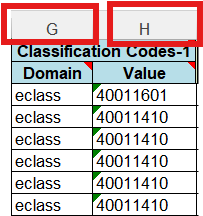
In der Excel-Datei, in den Spalten G und H sind die Classification Code/Domain und Value/eclass Klassifizierung einzutragen. Diese Felder sind Pflichtfelder.
In der Spalte H (Value) wird die Warengruppe des entsprechenden Artikels nach eClass Version 8.1. kodifiziert (vgl. www.eclass.de). Es soll immer die eClass der 4. Ebene angegeben werden. Wenn eine eClass-Nummer auf „00“ enden sollte, ist das ein Indiz dafür, dass nicht die 4. Ebene verwendet wird. Bitte überprüfen Sie in dem Fall die eClass.
eClass Beispiel: 40011601
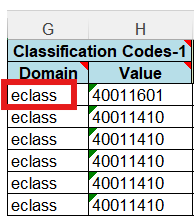
In der Spalte G (Domain) muss in jeder Zelle eclass eingetragen werden. Dabei muss die Kleinschreibung eingehalten werden.
Beispiel: eclass
Informationen zu diesem Thema erhalten Sie im Leitfaden zur Katalogerstellung.
Nach der Behebung des Fehlers muss der Katalog erneut hochgeladen werden.
Falls der Katalog weiterhin die Prüfung nicht besteht, nehmen Sie bitte Kontakt mit unserem Support Team auf, indem Sie ein Ticket über das Supportformular erstellen.
End of expander content
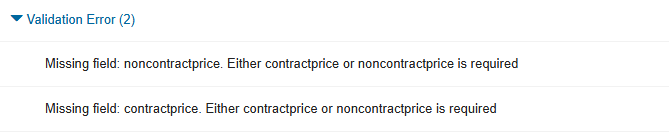
2. Error message: Missing field: Contractprice or noncontractprice. Either contractprice or noncontractprice is required. What do I need to do?
The following error message appears when you upload the catalog:
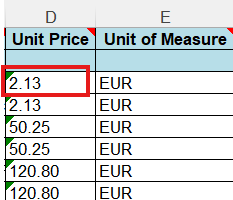
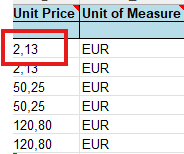
In column D, UnitPrice, enter the unit price of the item. Use a decimal point as the decimal separator, not a comma.
Example: EUR 2.13
Correct:
Incorrect:
More information about this topic is available in the guidance for creating catalogs.
Once you have corrected the error, upload the catalog again.
If the catalog has still not been validated, contact our support team by submitting a support request using the support form.
End of expander content
3. I need a new parameter that is not yet in Ariba. What do I need to do?
Please contact our support team by submitting a support request using the support form.
End of expander content
4. I got an error message, "Unexpected System Error". What do I need to do?
The following situations can cause the error. They can occur in combination.
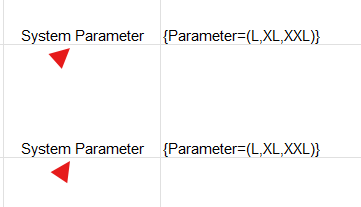
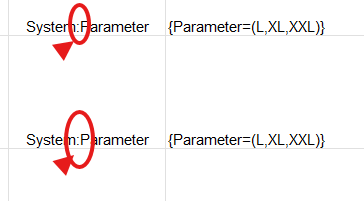
1. Make sure the parameters in columns AH and AI columns do not contain typos or spelling errors. Use the following notation when entering the Parametric Name in column AH: "System:Parameter". The colon is missing in the following screenshot:
Falsch:
Richtig:
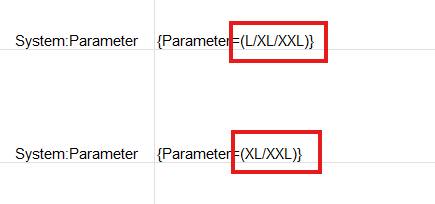
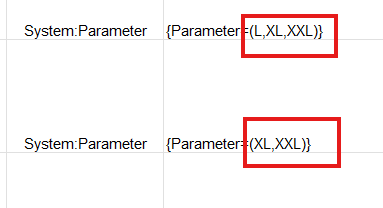
2. Es kann außerdem vorkommen, dass, wie in folgendem Beispiel, in der Spalte AI der eigentliche Parameter falsch dargestellt wird: Hier wurde zwischen L und XL und XXL anstatt einem "Komma" ein "Schrägstrich (/)" verwendet:
Falsch:
Richtig:
3. Im Falle eines BMECAT-Kataloges, überprüfen Sie bitte, ob der Header korrekt geschrieben ist. Die XML-Datei sollte wie folgt beginnen:
4. Im Falle eines Excel-Kataloges, überprüfen Sie bitte, ob das Katalogformat der Excel-Vorlage entspricht.
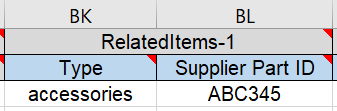
5. Überprüfen Sie bitte, ob die "RelatedItems" korrekt und vollständig gepflegt sind.
Beispiel:
Nach der Behebung der gefundenen Fehler muss der Katalog erneut hochgeladen werden.
Falls der Katalog weiterhin die Prüfung nicht besteht, nehmen Sie bitte Kontakt mit unserem Support Team auf, indem Sie ein Ticket über das Supportformular erstellen.
End of expander content
5. Can duplicate item numbers be used in the catalog?
Each item number can be assigned only once in a catalog. Duplicate item numbers can cause errors in the catalog.
If an error occurs because you have used an item number more than once, correct the duplicate item numbers and upload the catalog again.In einem Katalog darf jede Artikelnummer nur einmal vergeben werden. Werden Artikelnummern mehrfach verwendet, kann es zu Fehlern im Katalog kommen.
In diesem Fall sind die doppelten Artikelnummern zu entfernen und anschließend muss der Katalog erneut hochgeladen werden.
End of expander content
6. How do I help users find products more quickly in DB Marktplatz?
You can optimize the search in DB Marktplatz so that DB users can find specific items more easily and quickly.
Keywords are important for the search in DB Marktplatz. It is important to add alternate search terms, synonyms, other context-related terms and so on. Note, however, that DB Marktplatz users cannot see keywords.
If items are no longer available and you add successor items to the catalog, enter the predecessor item number here. You can enter up to ten keywords for each item. Use a comma to separate keywords.
Avoid using verbs, adjectives, subjunctives, conjunctions (e.g. with, for, at, and, etc.), manufacturer names and other characteristics that are already used in other fields in the catalog.
Tiered prices are optional and must be entered in accordance with the framework agreement. Errors can occur in the catalog if tiered prices are not entered correctly.
If tiered prices have been arranged for your items, enter the standard price in the PriceConfiguration-1 field as it appears in Unit Price (column D). The first tiered price then begins at PriceConfiguration-2.
The following fields are required:
Amount
PriceCurrency
Lowerbound (of tier)
Do not enter validity dates (StartDate and EndDate).
You can add as many tiered prices as needed by numbering the PriceConfiguration. As with images and attachments, you can copy the PriceConfiguration fields and append the correct number (see columns AW through BJ: PriceConfiguration-2, PriceConfiguration-3 and so on).
Examples:
End of expander content
8.Who do I contact for technical questions about items, prices, environmentally friendly items or hazardous substances?
If you have any questions about items, prices, environmentally friendly items or hazardous substances or other technical questions, please contact your DB buyer.
End of expander content
9. What do I do if the URL for the PunchOut has changed?
If the link in the PunchOut has changed, please contact our support team by submitting a support request using the support form to coordinate and schedule the link update.
The general procedure is as follows: The catalog first needs to be tested in the test system. If there are no errors, it can be uploaded to the live environment.
End of expander content
10. Why is the order showing an incorrect price or an old price?
If you have already updated the price in the catalog, but the order is sent with the old price, please upload the catalog again.
If the problem persists, please contact our support team by submitting a support request using the support form. Please list the item. If the price is incorrect for more than one item, you only need to list one item as an example.
End of expander content
11. How do I upload catalog changes as a new catalog version in SAP Ariba?
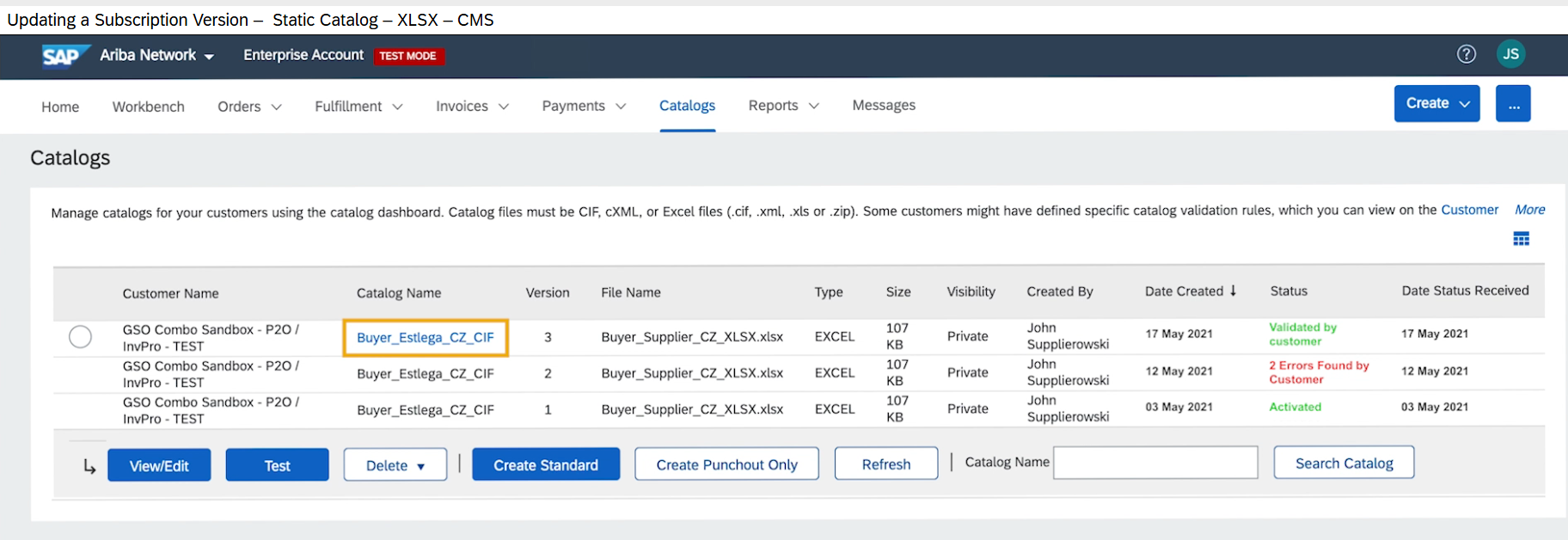
You can upload changes to the catalog as a new catalog version. All you need to do is replace the catalog version.
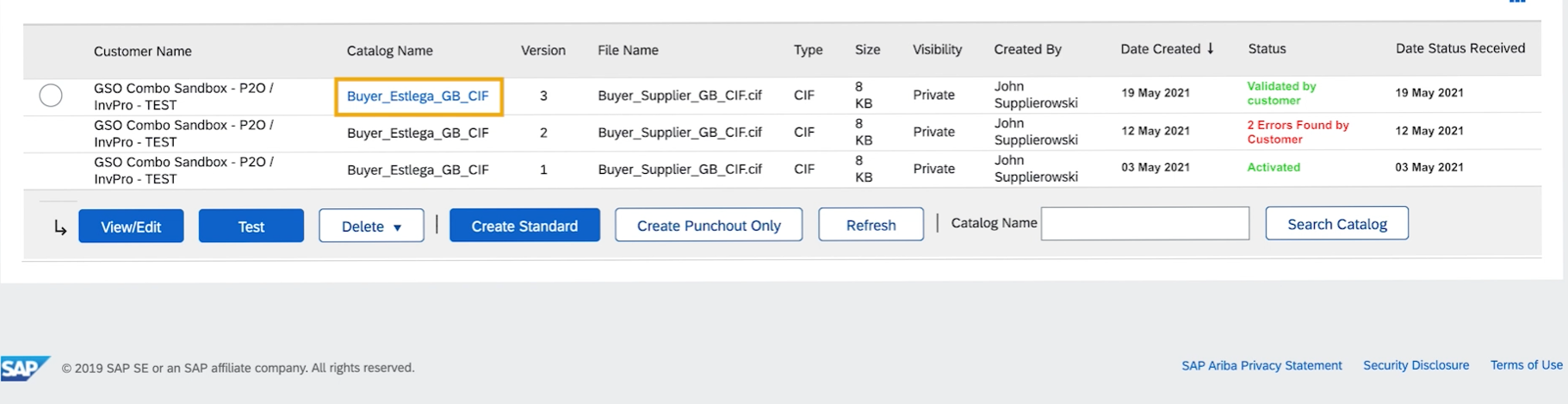
Select the catalog and then click the View/Edit button.
Note: The catalog name remains the same. Only the version is changed.
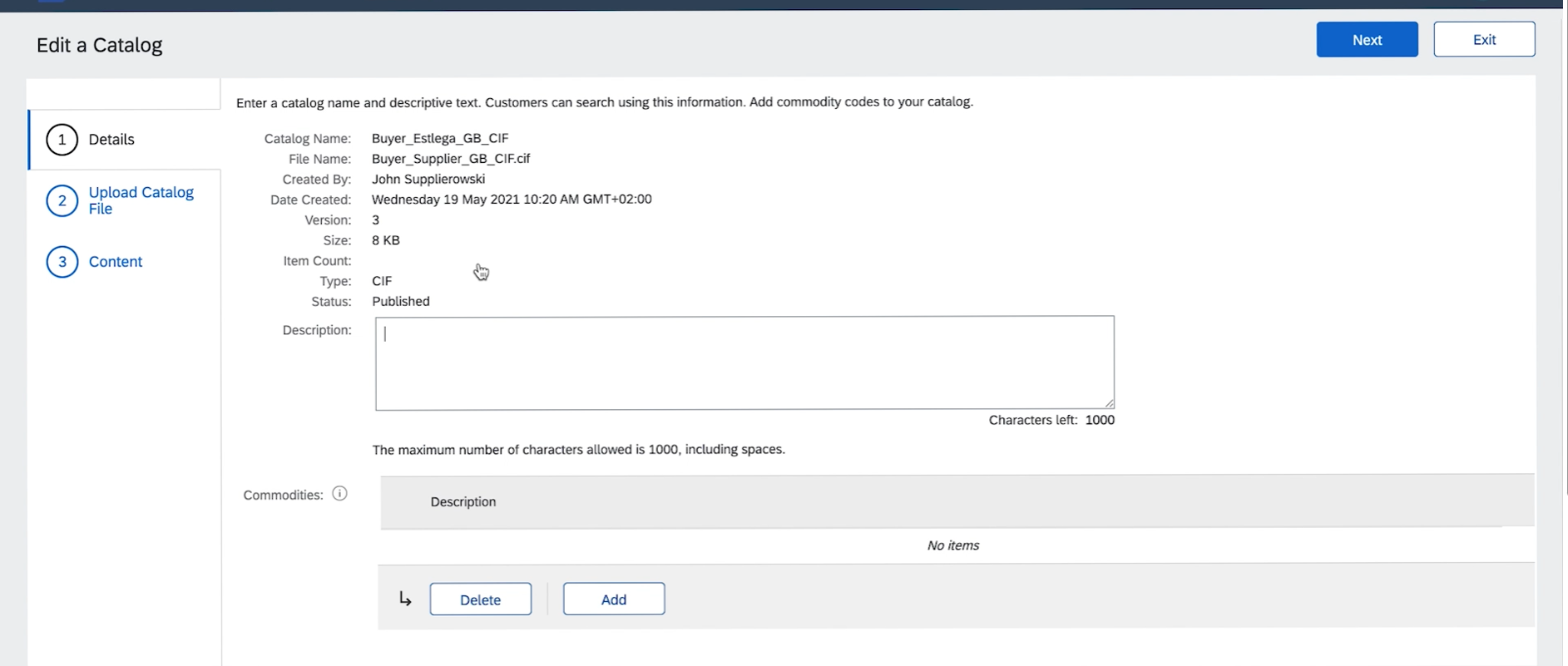
You can skip the Details step. You do not need to edit Details. Click Next.
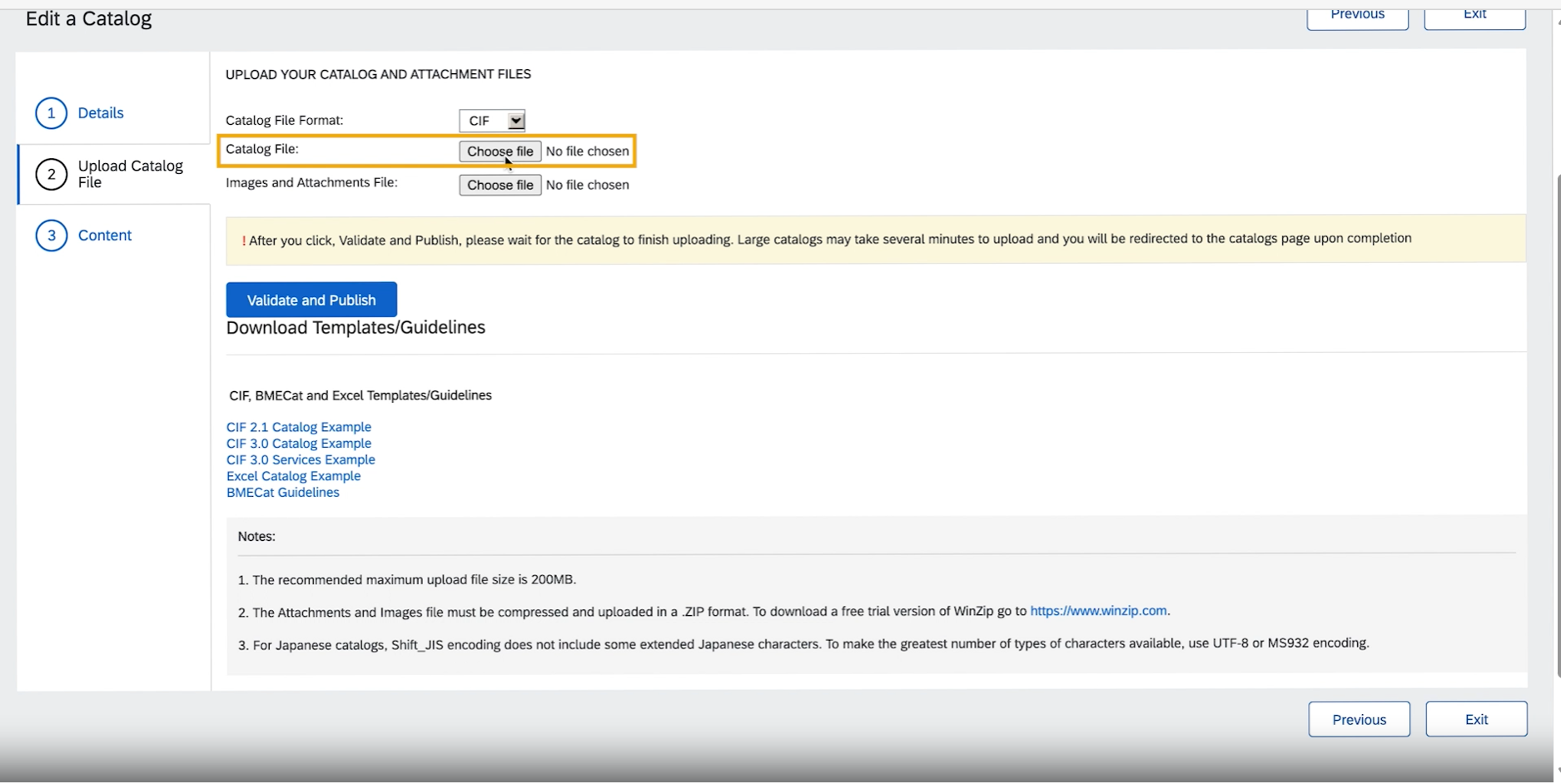
In the next step, "Upload your catalog and attachment files," upload the Excel catalog file including the attachments. You need to upload attachments if you created a separate image file instead of URLs for the attachments:
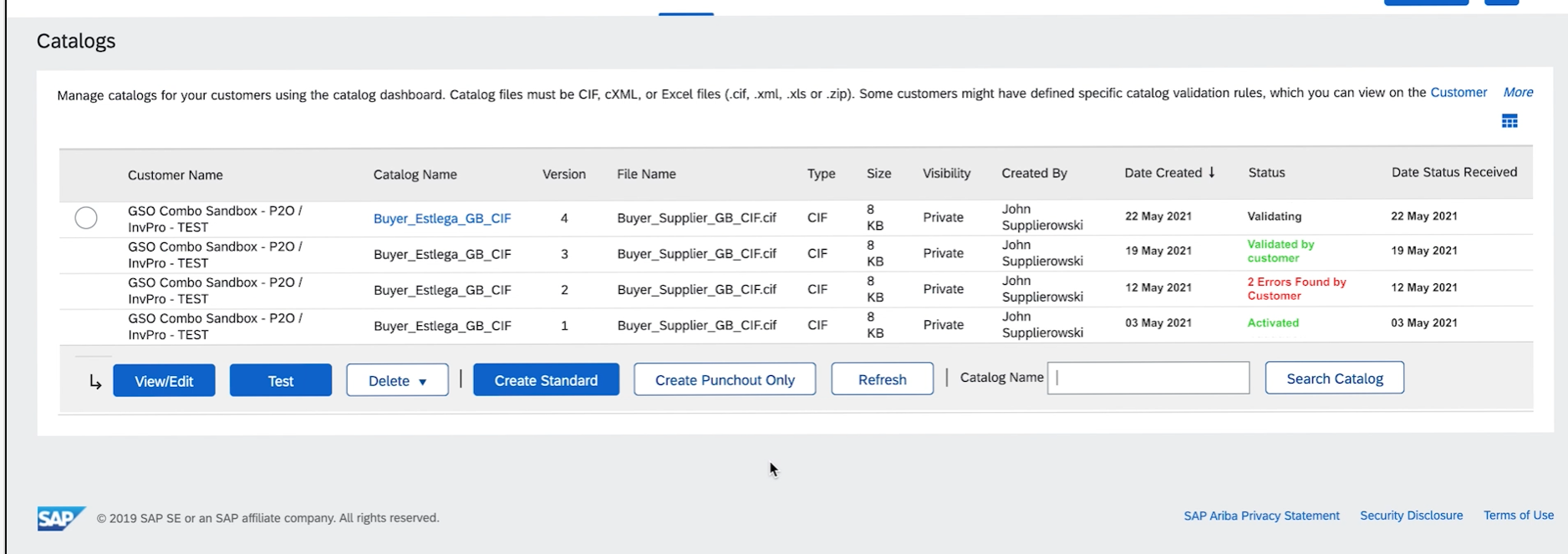
Click the "Validate and Publish" button. The page takes a moment to refresh. If the system successfully validates your catalog, you will automatically be redirected to the catalog overview:
This video from SAP explains how to upload a catalog to the SAP Business Network.
End of expander content
12. What is the difference between a catalog upload and a catalog update?
There is a difference between a catalog that is uploaded to the SAP Business Network for the first time and updates to an existing catalog to reflect changes.
Catalog upload (new catalog):
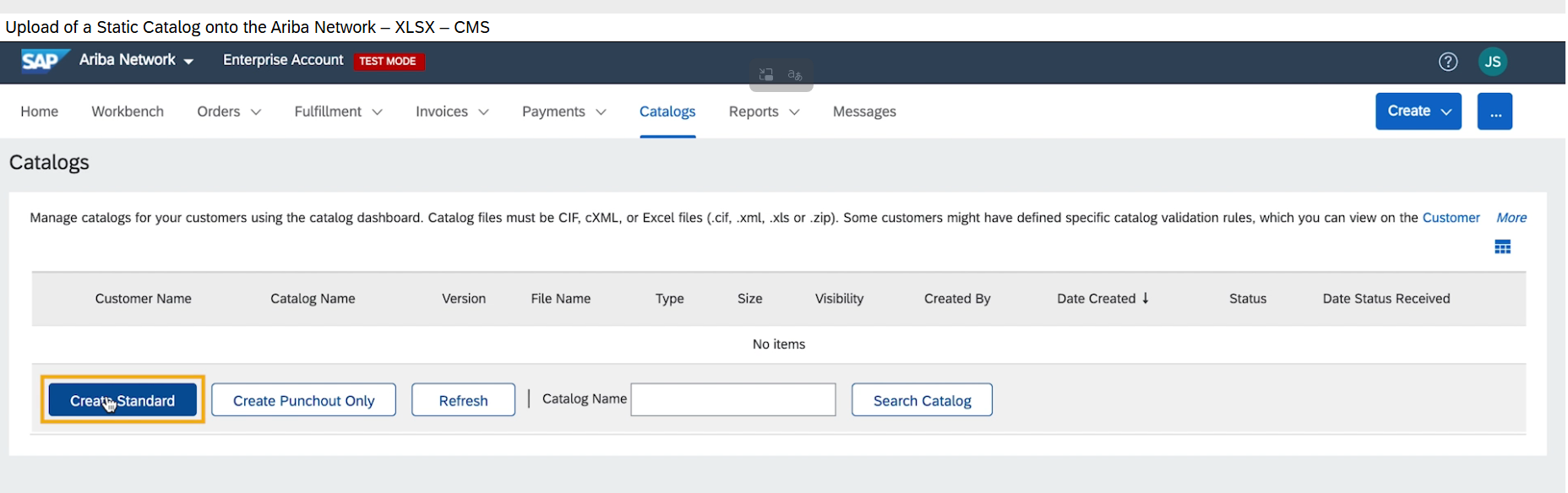
When you want to upload a catalog for the first time, select "Create Standard".
When you upload a catalog through the SAP Business Network for the first time, you enter the catalog name in the first step under Details. The catalog name starts with C. You will receive the catalog name from our supplier support team.
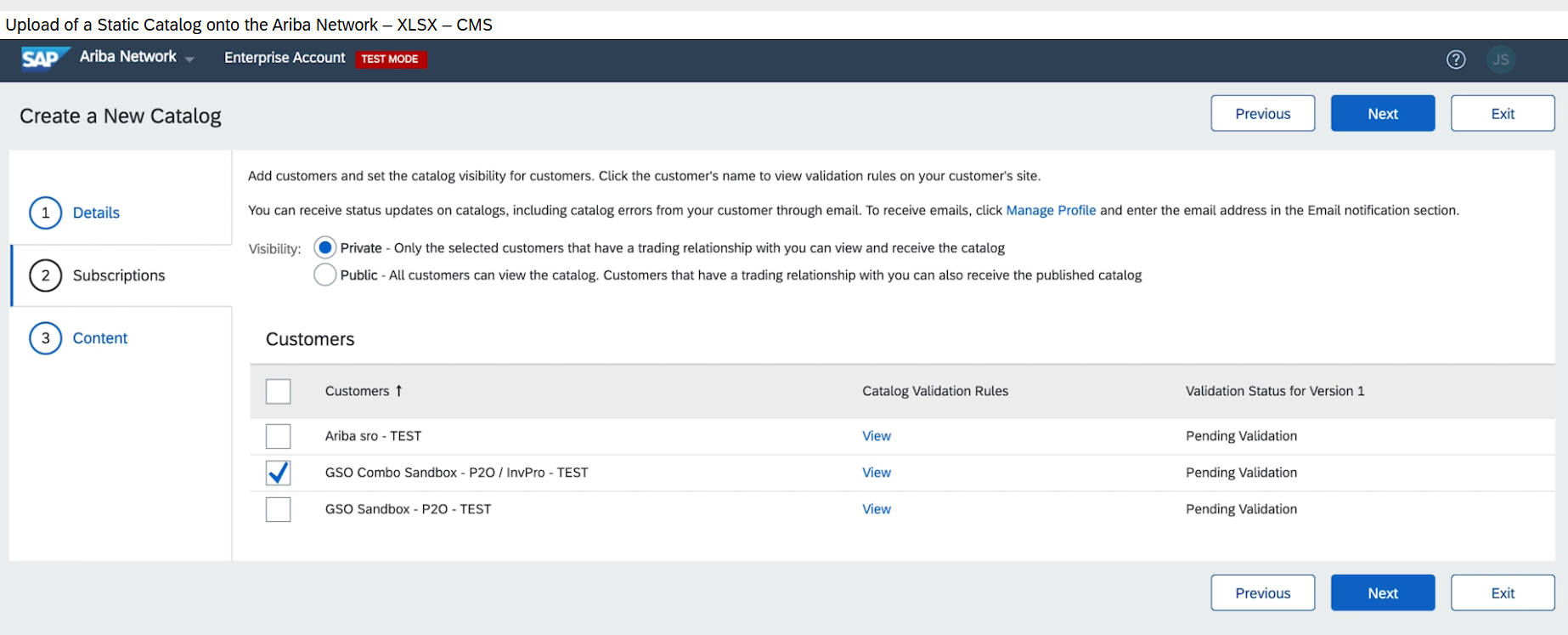
In the next step, Subscriptions, set the visibility to Private and select the checkbox next to Deutsche Bahn AG in the list of customers.
More information about uploading catalogs is available in this video from SAP Ariba: Upload of a Static Catalog.
Catalog update (change to an existing catalog):
When you update a catalog, you can just replace the catalog version. To do this, select the catalog and click the "View/Edit" button. The catalog name remains the same. Only the version changes.
13. My Excel catalog did not upload to the SAP Business Network. Is my catalog too large?
Catalogs larger than 15 MB cannot be uploaded to the SAP Business Network. If your catalog is larger than 15 MB, you have two options:
1. Split the catalog into more than one catalog. You must consult the support team before splitting a catalog.
2. Convert the catalog to another format (e.g. Bmecat or CIF).
If the problem persists, please contact our support team by submitting a support request using the support form.
End of expander content
14. How are new catalog versions approved?
A catalog must go through the approval process before it becomes active. Once you submit a catalog, a buyer validates the product range and prices listed. If everything is in order, a buyer approves the catalog. Once a catalog is approved, it is activated and can be used.
The approval process can take some time depending on the size of the catalog. Please contact the buyer if necessary.
End of expander content
15. What do I need to do to make sure that images are displayed correctly in DB Marktplatz after a catalog is updated?
When a catalog is updated, users can no longer see the images. A DB employee reported this error. This is often due to non-compliance with specifications for image size, format or the correct integration of the files. All of the following must be correct for images to display correctly in the catalog:
For static images (zip upload):
Recommended image size: 250 x 250 pixels, max. 90 KB.
Images must be located directly in the main directory of the zip file (no subfolders!).
For dynamic images (hyperlink/URL):
Recommended image size: 500 x 500 pixels, max. 90 KB.
Links must be directly to the image file.
Manufacturer logos for PunchOut catalogs:
Maximum size: 400 x 400 pixels
Image formats:
JPEG, PNG or GIF, RGB colour space.
File names:
The image file name in the catalog must match the file name in the attachment exactly (names are case-sensitive; make sure extensions match).
Do not use spaces, special characters or umlauts in the name.
Three image variants per item:
Enter the same image in the columns for Thumbnail, Normal and Detailed (e.g. ExampleImage1.jpg).
Multiple images per item:
You can add additional images by adding columns for image 2, 3, and so on using the format Image-2, Image-3, etc.
You can also add information about hazardous substance pictograms or environmental labels.
If these specifications are not followed exactly, images are often not displayed in the catalog. Make sure that all conditions are met before you upload the catalog.
If the problem persists, please contact our support team by submitting a support request using the support form.
End of expander content
16. Which fields in the Excel catalog document are required?
Catalog imports fail when required fields in the catalog template are empty. The first eight columns (A–H) on the Items worksheet are required in the catalog document. They are highlighted in blue in the Excel template and must always be populated with permitted values.
Other required fields for DB are, for example:
Language (column V, default: de_DE),
Currency (column W, e.g. EUR),
Lead Time (column S, lead time in days),
MinimumQuantity and
QuantityInterval (columns AF–AG)
You can identify required fields by the blue headings and/or comments (red triangle in the corner of the heading cell).
End of expander content
17. The catalog was uploaded in the wrong environment (test/live). How do I correct this?
If a catalog is accidentally uploaded to the wrong system, for example to the test system instead of the live system or vice versa,
the uploaded version should not be deleted. It should remain in the system it was uploaded to. To correct the mistake, go to the system where you intended to upload the catalog (live or test) and upload the catalog there. This ensures that the catalog is available in the correct environment.
End of expander content
18. The status of the catalog is "Waiting for Approval" or "Approval". Why hasn't the catalog been activated?
If the catalog status is "Waiting for Approval" or "Approval" but the catalog has not been activated, this could be due to one of the following reasons:
An Ariba system error may be affecting multiple catalogs.
The buyer may not have received the request to approve the catalog.
The process is stuck in "Waiting for Approval" status and is not processed automatically.
We recommend first uploading a new version of the catalog. If the status has still not changed after 24 hours, please contact our support team by submitting a support request using our support form.
End of expander content
Invoices:
1. Why was my invoice rejected?
Once the invoice has been accepted in the SAP Business Network, it can be rejected by the accounting department. If your invoice was rejected by the accounting department, the rejection message looks like this:
You can see details under "Approval Denied" or "Comments".
If you are unsure how to resolve the issue, please contact the accounting department as this is an accounting-related matter.
End of expander content
System:
1. Wie kommen Sie in den Testmodus des SAP Business Networks?
Um in den Testmodus, bzw. in das Ariba Testsystem zu gelangen, müssen Sie im Produktivsystem im persönlichen Profil die Option „Zum Testkonto wechseln“ auswählen.
Im Video von SAP erhalten Sie eine Erläuterung dazu.
End of expander content
2. I can't log in to the SAP Business Network. What do I need to do?
If you are unable to log in, please follow these steps:
Make sure you are using the correct e-mail address and password.
Note that as a supplier you can only log in using the e-mail address that we have saved for your user account. You cannot log in with other e-mail addresses that are not registered with us.
If you have forgotten your password, please use the "Forgot password" function on the login page to request a new password.
If you continue to have problems logging in, contact our support team by submitting a support request using the support form. Please provide as detailed a description of the error as possible. Let us know if an error message is displayed and which e-mail address you are using.
End of expander content
Miscellaneous:
1. How do I contact SAP Ariba support?
You need help in the SAP Ariba system and you have been referred to Ariba support. The following steps describe how to create a support request with the Ariba support team.
1. Log in to the SAP Business Network and click Help in the top right-hand corner.
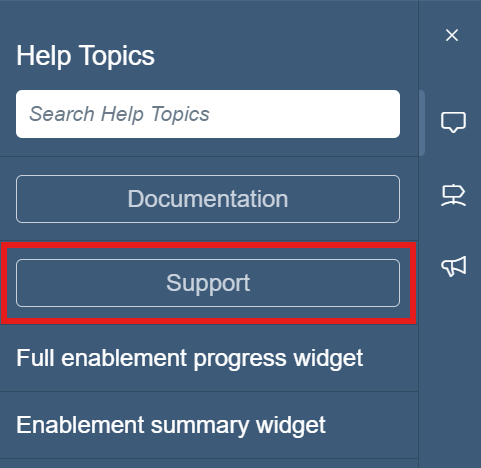
2. Select "Support" on the right.
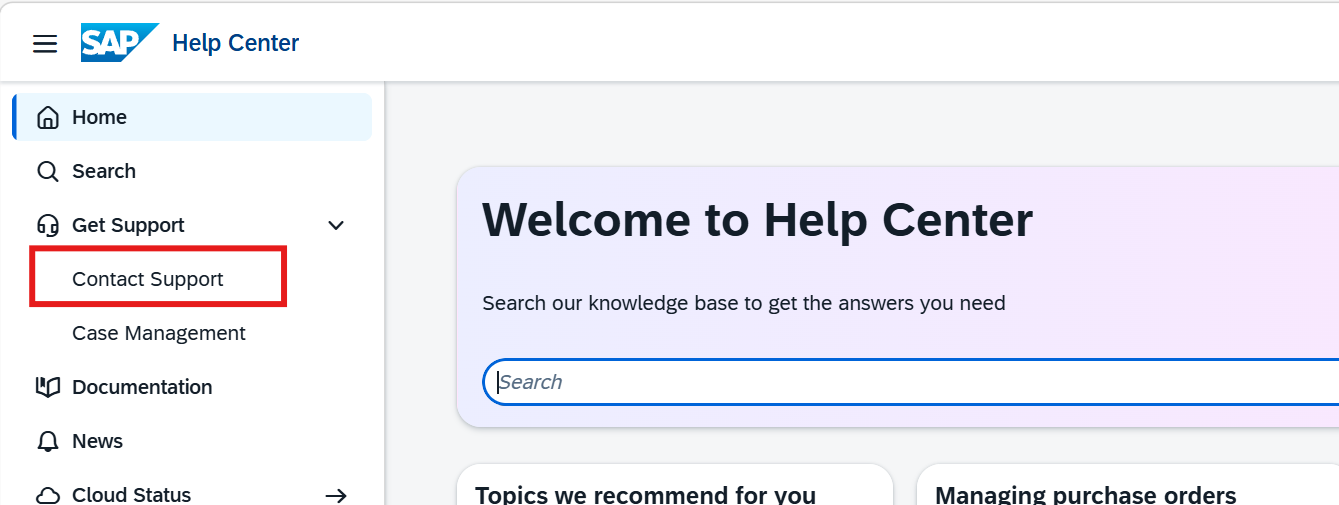
3. In the Help Center, select the "Contact Support" menu item.
4. Follow the steps on the screen. Enter the required information and submit your support request.
End of expander content
2. What is the difference between ShipTo, SoldTo and BillTo addresses?
The differences between the various addresses are explained below:
SoldTo (buyer address): This is the address of the company that places the order and is the contractual partner. This address therefore represents the buyer and typically appears on the order.
ShipTo (delivery address): This is the address where the items will actually be delivered. It can be identical to the SoldTo address but doesn't have to be. The address is often a warehouse, branch office or production site.
BillTo (billing address): The invoice will be sent to this address. It is usually the address of the buyer's accounting department and can also differ from the SoldTo and ShipTo addresses.
Here is an example: A company whose head office is in Munich (SoldTo) orders goods for a warehouse in Hamburg (ShipTo), but the invoice should go to the accounting department in Berlin (BillTo).
We will send you the lists of our locations by e-mail at the start of the project and any time changes are made.
If you have any further questions, please contact our support team by submitting a support request using the support form.
End of expander content
3. What do I do when I receive new lists with the ShipTo, SoldTo and BillTo addresses?
Please make sure that your integration team/IT specialists have the list so that they make them available or update them in your system.
End of expander content
If you were unable to find a solution to your problem in the above FAQs, you can submit your request using our support form. The form is intended for suppliers who are already integrated and require technical support in conjunction with DB Marktplatz (SAP Ariba Guided Buying).
Please provide all relevant information such as contact details, subject area and your SAP Ariba network ID in full. This allows us to assign your request quickly so that our support team can process your request efficiently.
Please note:
Instructions and documents on the procedure for supplier integration and catalogue creation can be found on our SAP Ariba Guidelines page.
SAP is responsible for technical issues and outages in the SAP Ariba network. If you are experiencing this type of issue, please contact SAP Ariba support directly or your assigned SAP Ariba contact.
For questions about invoice issues, please see our page on Invoicing.








 Go
Go